




Currently it is possible to add a Gmail based email address to Spamdrain using oauth2 standard where you will just need to authorise Spamdrain to access your email address with no need to enter the password. Once you enter a Gmail based email address during sign up / adding email address you will see the prompt on how to proceed. Please follow the steps in order to authorise Spamdrain:
If there is an issue using the above workflow there is a workaround on how to add the address using an app specific password option. In order to add a gmail based email address this way please refer to the following easy to do step by step guide:
- Open your Google Account. In the navigation panel, select Security and sign-in:
Under “How you sign in to Google,” select 2-Step VerificationGet started andFollow the on-screen steps.
- Open your Google Account. In the navigation panel, select Security and sign-in again:
- Under “How you sign in to Google,” select 2-Step Verification
- At the bottom of the page, select App passwords:
- Enter a name that helps you remember where you’ll use the app password and hit Create
- The app password is the 16-character code that generates on your device.
- Select Done.
3. Once the above steps are finished please feel free to add the address to the filtering under settings menu:
Click the Add address button.
Here are the needed settings that you might copy/paste:
email address - your gmail address
password - app specific password
server for incoming email - imap.gmail.com
type - IMAP
port - 993
username - your email address
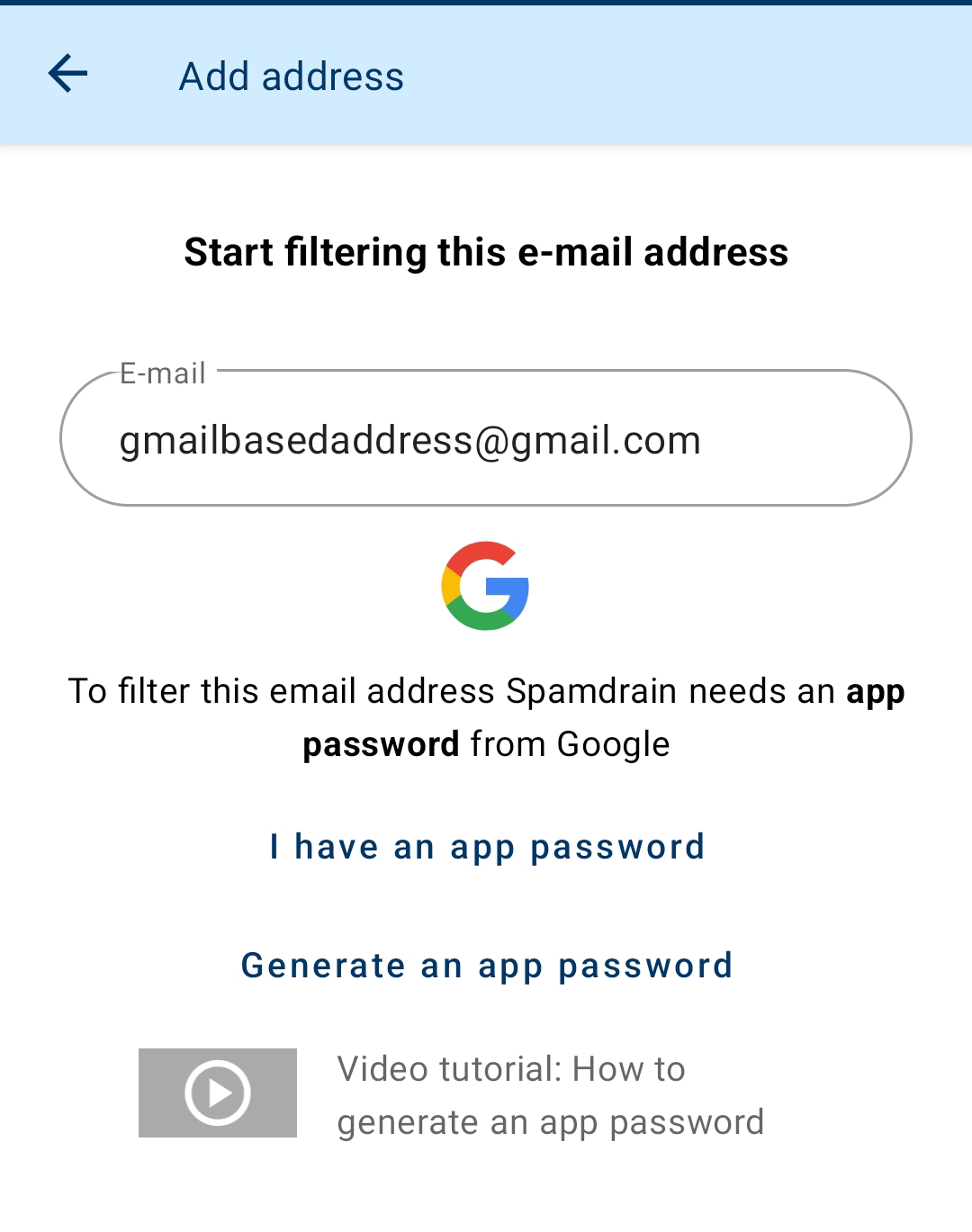
You can also add the address using the mobile app - just type the email address and you will see the help video on how to proceed with the app specific password:
Please feel free to contact support if there are still questions left.
Keywords: gmail, google, OAuth2